
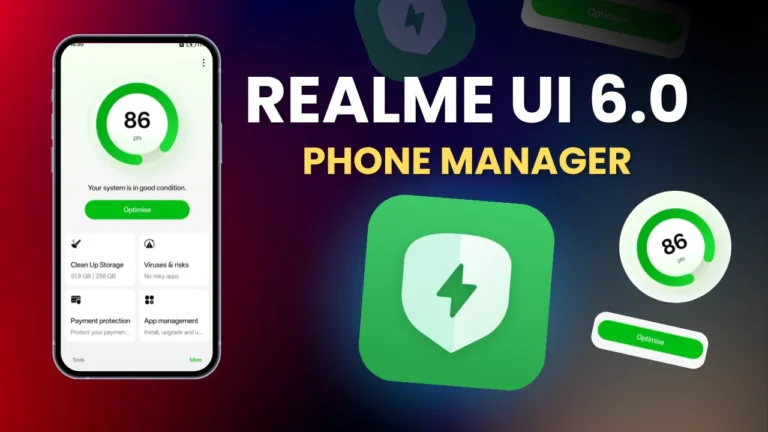
Realme has introduced Realme UI 6.0 based on Android 15. Most of the Realme UI 6.0 applications are can be installed in Realme UI 5.0 Android 14 devices. Realme UI 6.0 Phone Manager has new UI and Features here is the complete guide to install the latest version of Realme UI 6.0 Phone Manager in Realme UI 5.0 devices.
Core Highlights
New Interface: Rounded design with vibrant colors.
Enhanced Tools: Updated virus scan, optimize tools, and app management.
Additional Utilities: Tools like System Cloner, App Cloner, and Kids Space.
Payment Protection: A dedicated feature for secure transactions.
Realme UI 6.0 Phone Manager introduction
The Phone Manager application is a versatile tool for optimising, protecting, and managing your device. Whether you’re updating to the latest version or exploring its features, this guide will walk you through the process step by step. Let’s dive into what’s new in Phone Manager version 15.12.19 and how to use it effectively.
New Features in Realme UI 6.0 Phone Manager
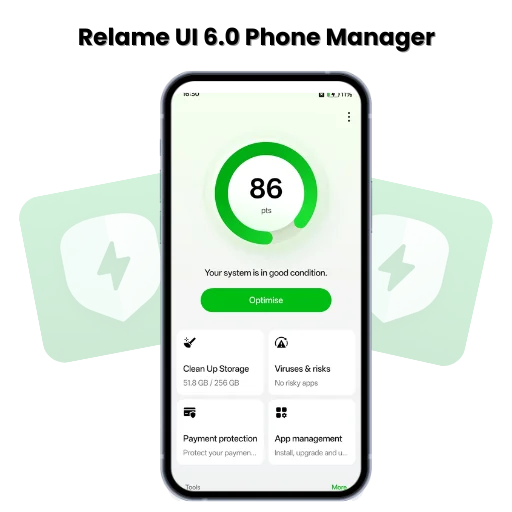
The recent update to version 15.12.19 brings a host of changes, from interface enhancements to new tools and utilities. Below is a detailed comparison:
| Feature | Previous Version (15.7.19) | Current Version (15.12.19) |
|---|---|---|
| Interface Design | Simple, boxy layout | Rounded, modernized design |
| Optimize Option | Basic ticking animation | Enhanced animations with smoother transitions |
| Virus Scan | Basic interface | Updated scan animation with “Scan Again” button |
| Payment Protection | Limited visibility | Dedicated payment protection tool |
| App Management | Limited features | Full app behavior monitoring options |
| Additional Tools | Basic cleanup and system info | Tools like Kids Space, System Cloner, App Cloner |
Phone Manager Interface Changes
- Improved Visuals: The app now features rounded icons and a cleaner layout.
- Color Enhancements: Vibrant colors make navigation easier and visually pleasing.
Phone Manager Core Features and Updates
Optimization Tools
- The updated Optimize Option offers a step-by-step progress animation.
- It ensures storage cleanup, performance boost, and system health checks.
Virus Scan
- The Virus Scan tool now has a refreshed interface and new animations.
- Additional tools include an Allow List to manage trusted apps.
Payment Protection
- The Payment Protection feature secures your online and offline financial transactions.
App Management
A revamped app monitoring section that lets you:
- View app usage.
- Control app permissions and data.
Tools Section
- The Tools menu has expanded with several features, including:
| Tool | Functionality |
|---|---|
| Data Usage | Monitors mobile data and Wi-Fi usage. |
| Battery Insights | Offers detailed information on battery health. |
| Kids Space | Creates a child-friendly environment on the device. |
| System Cloner | Clones your system for multitasking and sandboxing. |
| App Cloner | Duplicates apps for separate accounts or uses. |
| Private Safe | Protects sensitive files and media. |
| Emergency SOS | Quick access to emergency contacts. |
| Photo/Video Cleanup | Helps organize and free up space on your device. |
How to Uninstall the Phone Manager App
If you’re experiencing issues or the Three-Dot Menu isn’t visible, you can uninstall the app with these steps:
Download App Backup and Restore:
- Go to the Play Store and search for App Backup and Restore.
Search for Phone Manager:
- Open the tool and type “Phone Manager” in the search bar.
Uninstall the App:
- Select the Phone Manager app and uninstall it.
Realme UI 6.0 Phone Manager Download
| Realme Flux Theme: New Personalization Fature in Realme UI 6.0 Update |
| Realme UI 6.0 Hidden Features: A Complete Guide |
| Realme UI Official Rollout: Beta Testing Details in China |
FAQs
What is the Phone Manager App?
The Phone Manager app is a built-in tool for optimizing device performance, managing storage, and securing sensitive data.
What’s new in version 15.12.19?
The update introduces a modernized interface, enhanced animations, and new features like Payment Protection and advanced app management.
How do I access Kids Space or Private Safe?
These features are available under the Tools menu in the Phone Manager app.